Garanti BBVA Payment Module Integration for OpenCart 3.x & 4.x
OpenCart is a widely used open-source platform for e-commerce websites. With the Garanti BBVA payment module, you can provide your customers with a secure and fast checkout experience.
This guide outlines the step-by-step installation and configuration process for the Garanti BBVA module on both OpenCart 3.x and 4.x versions.
DOWNLOAD THE MODULE
Download the appropriate version of the module for your OpenCart installation using the links below:
After downloading, you should have a file named garantibbva.ocmod.zip.
INSTALLING THE MODULE
Installation via Admin Panel (OpenCart 3.x & 4.x)
- Log in to your OpenCart admin panel.
- Navigate to Extensions > Extension Installer from the left menu.
- Select and upload the
garantibbva.ocmod.zip file from your computer
Manual Installation via FTP (Alternative Method – OpenCart 3.x)
- Connect to your server using an FTP client like FileZilla.
- Navigate to the root directory where OpenCart is installed.
- Extract the downloaded ZIP file on your computer.
- Upload the
admin and catalog folders from the extracted upload directory to your server, merging with the existing directories. - Log in to the admin panel, go to Extensions > Extensions, find Garanti BBVA, and click Enable.
CONFIGURING THE MODULE
- Go to Extensions > Extensions from the admin panel.
- Locate the Garanti BBVA module and click Edit.
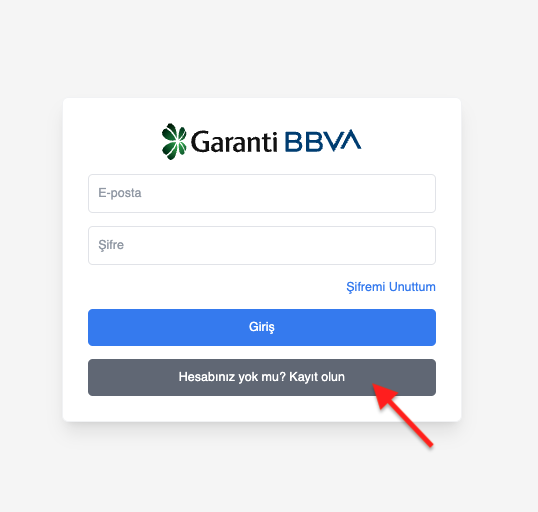
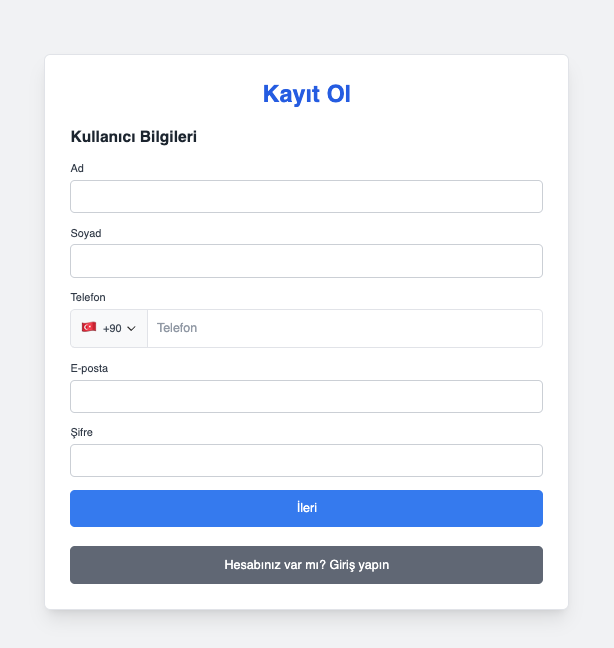
- In the configuration interface, click Sign Up and fill in the required details to create your account.
- Log in with your newly created credentials.
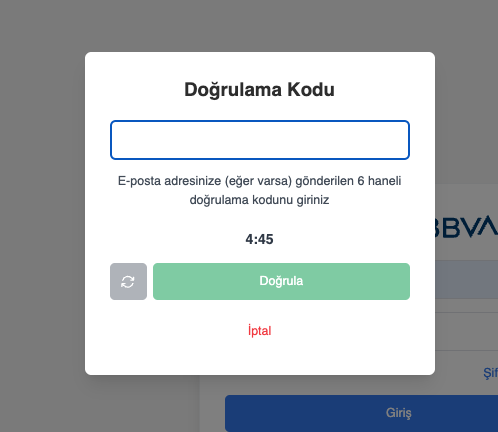
- Enter the verification code sent to your email address.
- Click the Verify button.
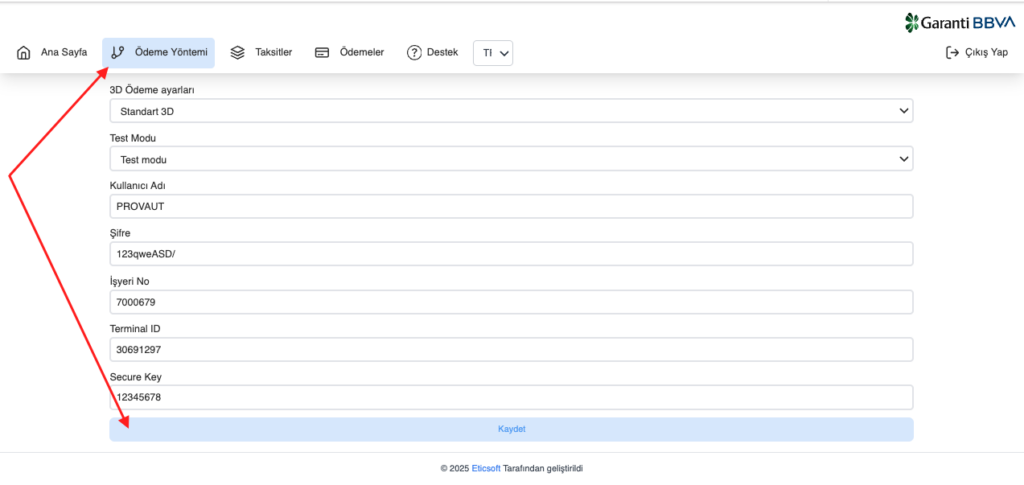
- Navigate to the Payment Method tab within the module.
- Enter the credentials provided by Garanti BBVA.
- Click Save to complete the configuration.
TESTING
- Navigate to the Payment Method (GATEWAY) screen.
- Under the Test Mode section, enable test mode and click Save.
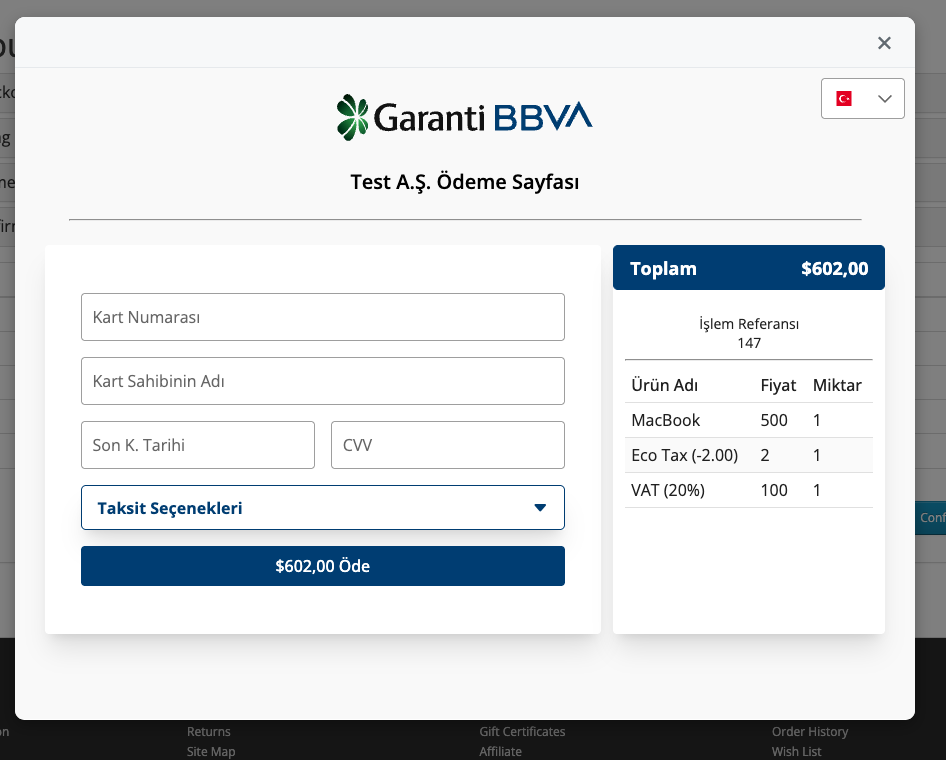
- Add a product to your cart and proceed to checkout. Select Pay with GarantiBBVA at the payment step.
- In the popup payment screen, enter the test card details and complete the transaction.
SUPPORT
If you encounter any issues during installation or usage, click the SUPPORT button within the module interface to contact our support team.