

PrestaShop Garanti BBVA v1.7.x & v8.x Payment Module Integration
PrestaShop is a popular open-source platform for e-commerce websites. By integrating the Garanti BBVA payment module, you can offer your customers secure and reliable payment options.
Below is a step-by-step guide for installing and configuring the Garanti BBVA payment module.
DOWNLOAD THE MODULE
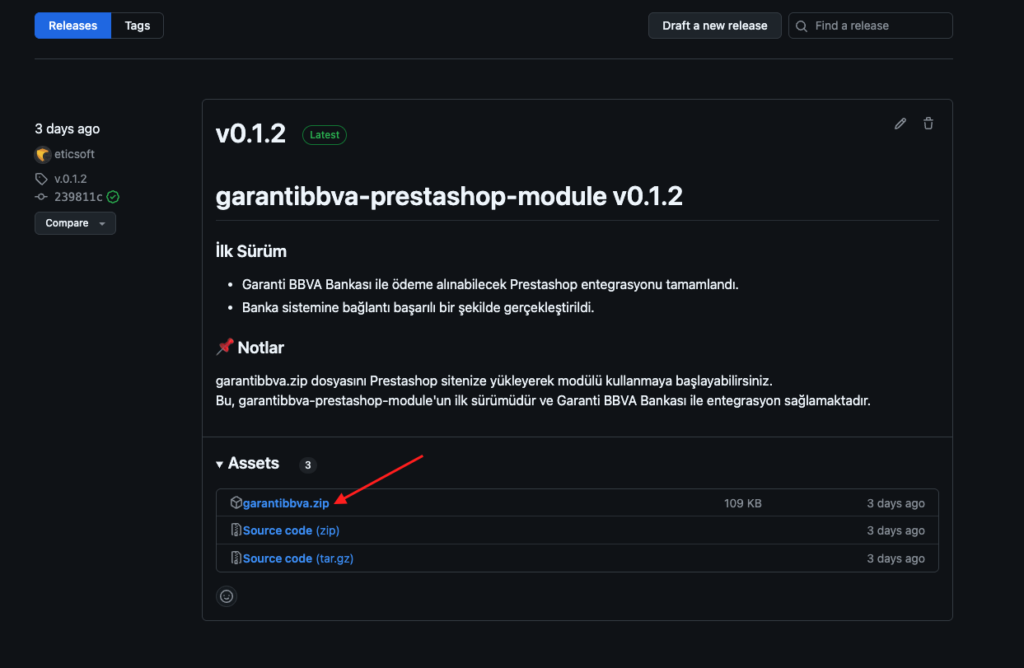
Click here to open the releases page. Select the latest version and download the garantibbva.zip file.
INSTALLING THE MODULE
- Log in to your PrestaShop admin panel.
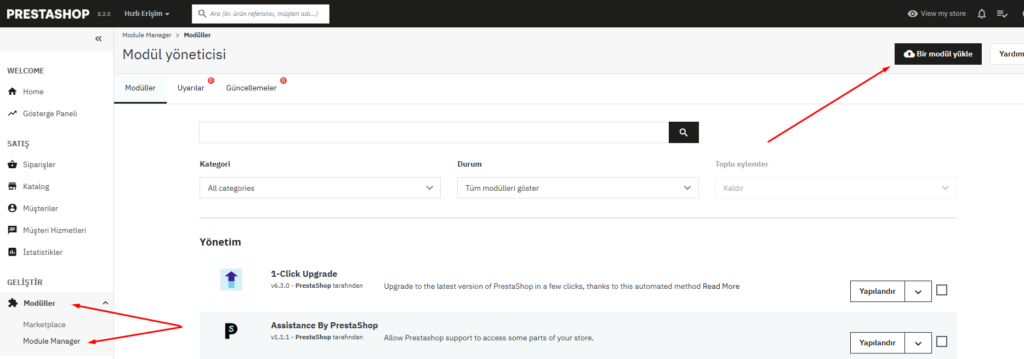
- From the left menu, navigate to Modules > Module Manager.
- Click the Upload a module button located in the top right corner.
- In the pop-up window, select the
garantibbva.zipfile you downloaded and wait for the upload to complete.
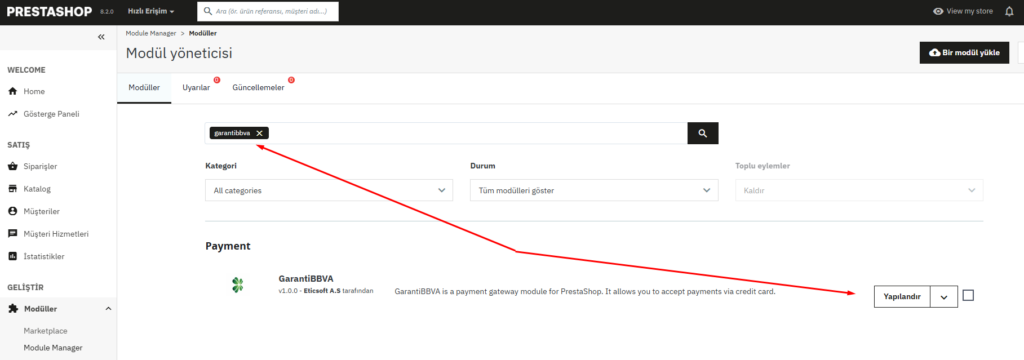
- Once the installation is complete, click the Configure button.
Uploading via FTP (Alternative Method)
- If the installation via admin panel fails, you can manually upload the module using the following steps:
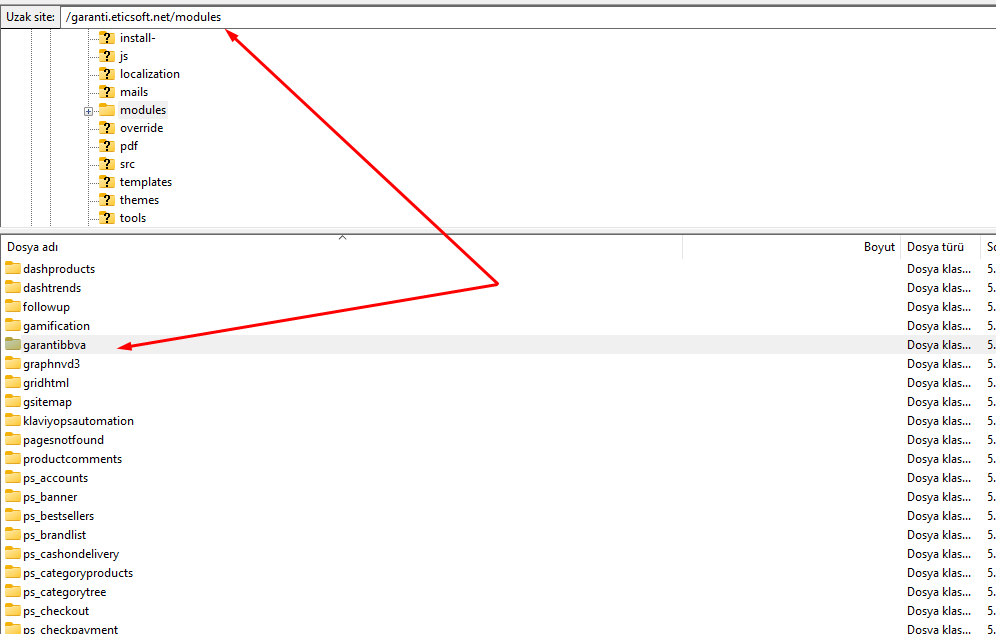
- Use an FTP client like FileZilla to connect to your server.
- Navigate to the
modulesdirectory (e.g.,/var/www/html/modules/or/public_html/modules/). - Extract the
garantibbva.zipfile on your computer. - Upload the extracted
garantibbvafolder to themodulesdirectory.
- Log in to the admin panel and go to Modules > Module Manager.
- Locate the Garanti BBVA module in the list and click Install.
CONFIGURING THE SETTINGS
- From the admin panel, go to Modules > Module Manager.
- Click Configure next to the Garanti BBVA module.
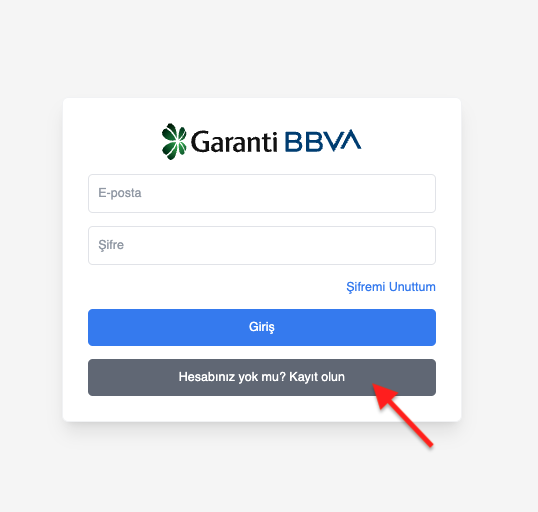
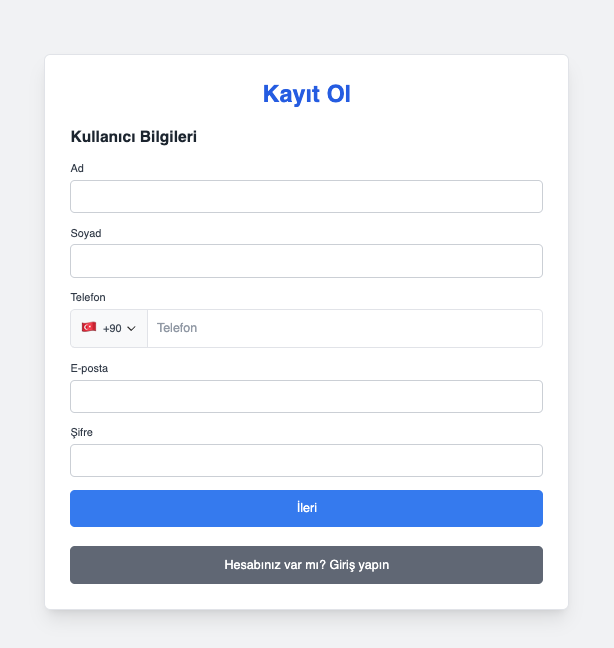
- In the module interface, click Sign Up to create an account by entering the required information.
- Log in using the credentials you just created.
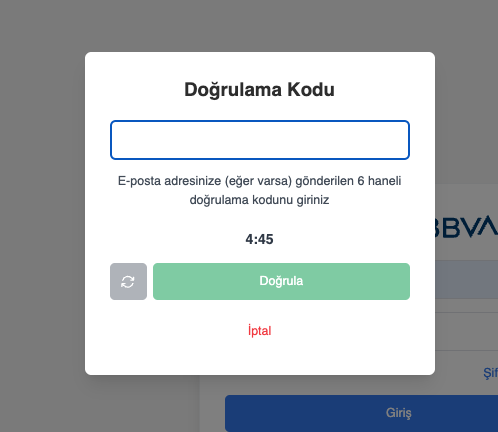
- Enter the verification code sent to your email address.
- Click Verify.
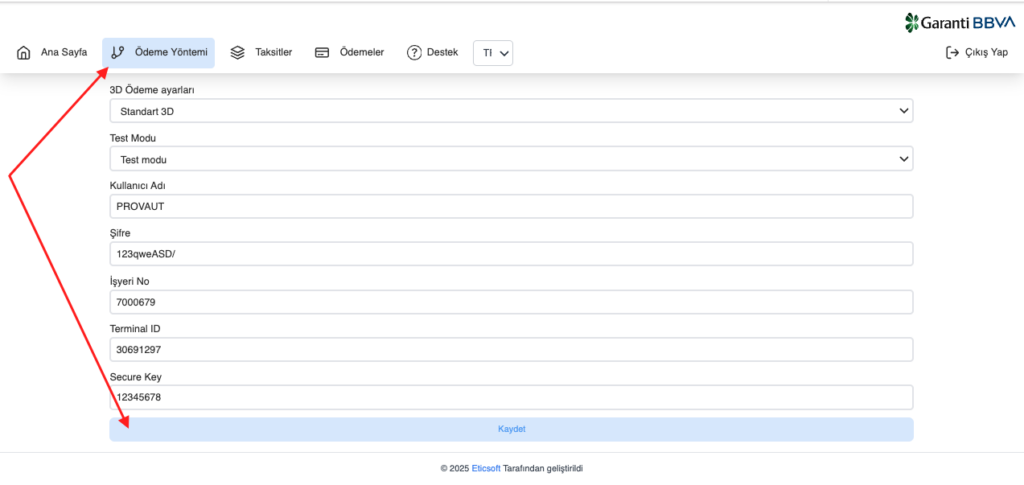
- In the dashboard, go to the Payment Method tab.
- Enter the credentials provided by Garanti BBVA.
- After completing the configuration, click the Save button.
We recommend placing a test order to ensure the Garanti BBVA payment process functions correctly.
TESTING
- Click on the Payment Method (GATEWAY) button.
- Under the Test Mode section, enable test mode and click Save.
- Add a product to your cart and proceed to checkout. Select Pay with GarantiBBVA at the payment step.
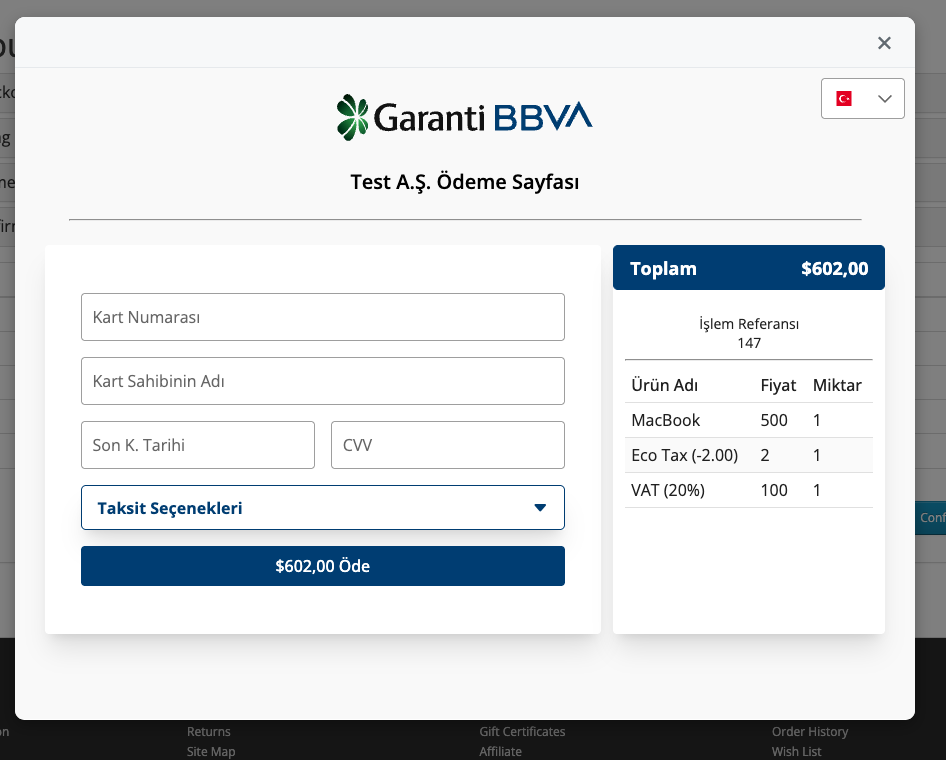
- On the pop-up payment page, enter the test card information and complete the payment.
If you experience any issues during these steps, click the SUPPORT button to contact the support team.
